Quick Introduction
Every time I go to an event of some kind, be it a small booth at an Expo for Primateria, a presentation, or even just small talk that leads into game development, the question I always get is “but how do you put a game on Steam?”
I remember very clearly, many years ago, asking the same question, and although now there are a bunch of resources online, I wanted to do my part and try to share everything I learned about this process over the years. Hopefully this is a good way to help indie developers that are starting out, or that have never released on the biggest digital game store in the world yet.
This article can seem long and intimidating at first, but that’s just because I want to be as thorough as possible to ease this process, which is convoluted but simple at its core. It’s important to keep in mind that:
- Although it looks scary, the steps are mostly simple — they just require research and care to get right;
- This is, for the most part, a one time setup. After you have your Steamworks organization account set up, adding more games is way quicker;
- None of what you read here is legal or financial advice. I’ll do my best to walk through my experiences and thought process back when my studio and I released our first game, Dual Snake.
Necessary Disclaimer
One thing I have to preface regarding Steam and its distribution platform, Steamworks, is that there are a couple of caveats to talking about it. To begin your distribution journey on Steam, you will eventually need to sign an NDA with Valve. This means there are many things that I will not be able to talk about or share here, but I’ll do my best to cover as much as possible, always linking the official documentation (which is public).
Have a Question?
To help keep things organized, I’ll try to put the most common questions in the FAQ section at the end. So, if you have a question, I encourage you to read the FAQ first, then the relevant sections that cover specific steps and aspects of Steamworks and distributing games on Steam. If your question wasn’t answered, feel free to reply here or shoot me a DM on Bluesky.
1. Getting Started - Where do I begin?
The first step in this process is to familiarize yourself with the Steamworks platform, which is already a bit of a challenge given there’s not much official information about it. This is how the platform is described in their official documentation:
Steamworks is the set of tools and services built by Valve that help you configure, manage, and operate your game on Steam.
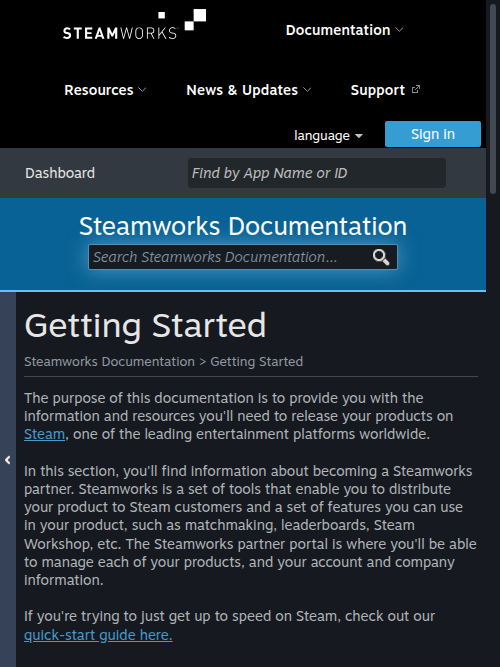
So a great place to start is their Getting Started article. Reading it will be a bit confusing — there’s a lot of information — but it’s good to get familiarized with the terms and the process. I’ll cover all the steps and try to give as much context, tips and advice as possible for each one.
2. Setting Up a Steamworks Account
Even though this is the first step, I remember I was very confused the first time I stumbled upon Steamworks and the setup process. It also doesn’t help that a lot of the videos in the official documentation are very, very old and possibly outdated. This is a required step to proceed, since all steps after this one will require you to have access to the Steamworks Platform and the official SDK.
The creation of your Steamworks account will pretty much define your relationship with Valve, and more importantly, how you will receive payments for your game sales. This is why the account setup process will ask for a bunch of personal information and, more importantly, bank and tax information.
So here comes the first decision that you’ll have to make: setting up Steamworks as a “personal organization account”, with your personal information, or as a “company organization account”. This step can vary heavily based on where you live.
”Personal” vs. “Company” Organization Accounts
The reason I’m putting these in quotation marks is that there’s not really a difference once you’re inside Steamworks. What really varies here is the relationship between you and Valve as a corporation. Since myself and my good friend and co-founder of my studio (Yfrit Games) are from Brazil, this is mostly our experience, but note that this decision entails a bunch of smaller, but important things.
Taxes
It’s important to keep in mind this will be a bit country-specific, but your country will likely have somewhat similar processes. It’s strongly recommended to seek legal counseling here, and to do as much research as you can.
As in most countries, in Brazil you have to pay income tax. There’s a maximum amount you can make in a year to be exempt from it. Afterwards, you’re taxed for every bit that goes over. These taxes can be very high, so if you choose to use a “personal org account”, that is, put your personal bank and tax information here, there’s that risk. The alternative is to set up a company, which in Brazil there are multiple ways to do. The simplest, called MEI, didn’t exist for games back when we started, giving us only complex and bureaucratic options.
So to us the question was: are we expecting to go over the annual limit, and if so, are the taxes to be paid higher than what we’ll have to spend for all the company setup plus company taxes? Back then, the answer was no, so we went with a personal account. Now, we’re in a much different situation. This means you can change this later, but keep in mind it’s a bit of a hassle and a bureaucratic process.
If you’re from Brazil, as of now, I’ve heard there are ways of setting up MEI accounts for game development activities. This is probably the way to go here, since it’s a very easy way to set up a company and most of the other steps are also easier with MEI. Again, not legal or financial advice.
The most important thing at this step is to do your due diligence and research this as much as possible, and be mindful that things will vary from country to country and state to state.
Payment
Another mandatory aspect of the account setup is providing a bank account that can receive payments from Valve. If you’re using a personal account, most banks allow for international transfers, but you might need to set this up with your bank. Digital banks with global accounts are becoming more common and may offer this feature by default. If you’re using a company account, you’ll need to set up a company bank account to receive payments.
One crucial point to understand is Steam’s revenue-sharing model. As of now, Valve operates on a 70/30 revenue split, meaning that as a developer, you receive 70% of the revenue from your game sales, while Valve retains 30% for distribution and platform services. This split is standard across major digital distribution platforms and is important to factor into your financial planning and pricing strategy.
For example, if your game sells for $10, you will receive $7 before taxes and any other applicable fees. Keep this in mind when estimating your potential earnings and setting your game’s price to ensure it aligns with your revenue goals.
Important: Valve will always make payments in U.S. Dollars, so your bank account must be able to handle international transfers and currency conversion. Some global accounts manage this by making instant conversions, while others allow you to hold funds in multiple currencies. Research this thoroughly and consult with your bank to set up the most efficient system for your needs.
Revenue Share
This is a topic that doesn’t get discussed much, but it’s a very important one. Unless you’re a solo developer, you’ll most likely be working with other people in your game. So although it is still possible to create your Steamworks account as an individual, be mindful that, officially, that person will be the “Super Admin” of the organization, and that all payments and transfers will occur in their name. This can be problematic for revenue share.
I know many of us just want to put a game out and don’t really care much about money or income at first. This was our thought process as well with our first Steam Game, but it’s important to be aware of the implications of having all revenue and the Steamworks account tied officially to only one person. Research how company partnerships work in your country and state, and seek legal advice.
Adding Users and Your Game
Once your Steamworks organization account is set up, you’ll be ready to start adding your users (developers), and most importantly, adding your game.
Many moons ago, the process for adding games on Steam was something called Greenlight, a platform where developers could submit games that would be voted on in order to be added to Steam. You can read more in the article, but the main reason Steam moved away from Greenlight was the fact that people paid third-party platforms to artificially vote en masse on their games, bypassing the process.
To counteract this, Steam switched to the Steam Direct process, in which, instead of paying for third-party bot farms to get your game on Steam, you just pay Valve directly. To add a game to Steam, you’ll have to pay a $100 entry fee. This price is localized to your currency, so it can be less or more depending on where you are in the world. The fee is not refundable.
The fee is more of an advancement than a fee per se. If your game reaches $1000 of Adjusted Gross Revenue, Steam will pay back the $100.
3. The Steamworks SDK
With your Steamworks account properly set up, the hard part is basically behind us. Once you’re inside Steamworks, you’ll be granted access to many resources, including the Steamworks SDK. This is a set of tools and libraries provided by Valve for basically two things: 1) publishing games on Steam; and 2) integrating Steam features (like achievements, leaderboards, the workshop, etc.) into your game.
If you’re not planning on using any Steam features in your game, there’s no need for integration at all, and you’ll only be using the distribution tools of the SDK. If you are, I’ll cover integration briefly in section 5.
4. Deploying to Steam (Builds and Depots)
For this step, the first thing is becoming familiar with a couple of Steamworks terms and concepts:
- App ID (Application ID): A unique number assigned to each game or software on Steam. It helps identify your game in the Steam ecosystem. You can always see a game’s App ID in its official Steam URL:
store.steampowered.com/app/1397130/Primateria/
- Depot: A storage unit for game files on Steam. Each depot can contain different versions of game files, such as the main game, downloadable content (DLC), or updates.
- Build: A specific version of your game that you upload to Steam. Builds can include new features, bug fixes, or content updates, and are always tied to Depots.
- Branch: A way to manage different versions of your game. For example, you might have a “beta” branch for testing new features before they go live. The “default” branch is what all players see.
Before uploading your game to Steam, make sure to read the Uploading to Steam documentation, it has a lot of best practices and important information. It can be a bit intimidating; just keep in mind you don’t need to understand everything at once, just try your best to absorb the terms and understand the overall process.
Creating a Depot
In summary, we can think of depots as packages that Steam will distribute. When you add a game to your library on Steam, the moment you hit “download”, Steam will serve you the files (build) within that depot. Depots can thus be used as a way to logically separate different distributions of your game. A practical example is having one depot for Windows, one for MacOS and one for Linux; having separate depots for different languages in your game, so that download times are faster (users don’t need to download all audio and text files for all languages); depots for your DLC, and so on.
This means that, for most simple cases, you’ll only need a single depot that will carry all of your game files, most likely for Windows. Having a single, main depot is as simple as going to the depots page, clicking “add” and choosing the platform options.
Uploading a Build
Once you have a depot ready, you’ll be able to upload your game files. By doing so, you create a build which is basically a representation of your game files and content for that depot at that point in time. What that means in practice, is that the files you upload will be tied to the depot you created and to a build ID that’ll be automatically generated. You will then be able to serve those files to your players, and Steam will automatically serve updates once you do so.
To upload your files, you have a couple of options:
- Upload a zip: if your game is smaller than 2 GB (2048 MB), Steamworks gives you the option to just upload a zip file of your game, without needing to mess with the Steamworks SDK tools or
steamcmd. This is the quickest and easiest way to upload your game. - Using SteamPipeGUI: if your game is larger than 2 GB, then you’ll need to use the tools. You’ll need to download the latest version of the Steamworks SDK, and all the necessary tools will be inside the
toolsfolder. Within that folder, if you’re on Windows, you can use theSteamPipeGUI, which is a graphic application to upload game files. Just fill the information asked by the tool and it should do everything for you. - Using steamcmd: If you’re not on Windows, then you’ll have to use steamcmd, a command line application for Steam that allows things such as uploading game files. The entire process is described in detail in the Upload Your Game documentation, but the TLDR is: 1) create your build script file
your_app_build.vdfwith the necessary information (your app id and the path to your game files directory); 2) run the build script using steamcmd:tools\ContentBuilder\builder\steamcmd.exe +login <account_name> <password> +run_app_build ..\scripts\your_app_build.vdf +quit - Using third party tools: some people have made their own tools to aid with things like multiple application uploads, as it can be a hassle to maintain multiple build scripts. There’s a bunch of them on GitHub — feel free to look around and see if they fit your needs.
Once your build is generated with your game files, it will appear in your builds page. Here, your final step will be to set that build live.
Builds can be live on different branches, which are basically pointers to builds you upload. You can create branches like playtest or beta, to serve content for specific players or play testers. They can even be password protected. The default branch is created automatically, and is the one that will be served to all players that own the game. This means, once you set a build live to the default branch, all players will receive that build as an update.
5. Steamworks Features
These are all the features that you’ve seen on many Steam games, like achievements, multiplayer, Steam Cloud, and so on. A full list of features can be found in the Steamworks Documentation.
In terms of integration, the process can be sluggish, complex and could use better documentation if doing it by hand, especially if you’re not familiar with C++. However, nowadays there are a multitude of alternatives that can streamline this process of integration, with varying levels of complexity (and cost). I won’t be covering integration too much in this article, as there’s a lot to talk about, so I’ll be writing a separate article on this. Here’s a quick list depending on what you’re using to develop your game:
- Steamworks.net (Unity): a free, open-source C# wrapper to the Steamworks SDK that makes Steamworks integration way simpler on Unity (or non-unity C# projects like MonoEngine);
- Online Subsystem Steam (Unreal Engine): the official way of integrating Unreal Engine with Steamworks. This one can be very convoluted and hard to set up, but it is free;
- SteamCore (Unreal Engine): an Unreal Engine plugin that offers Blueprint and C++ integration with Steamworks. It makes things a lot easier, but it is kinda pricey;
- luasteam (Love2D): a Lua wrapper for the Steamworks API that I wish existed in 2017 when we did all of this by hand.
Each feature has its own setup process. For instance, achievements require you to define them in Steamworks with an ID, then use your integration method of choice to trigger them in-game. Some features are fairly easy and straightforward, like Steam DRM, while others can be a complete pain to set up, like User Authentication and Ownership on servers.
The most annoying part of Steam features is that the game must be running within the Steam runtime environment for them to work, and that can be very annoying to set up on engines like Unreal Engine. One thing that can (somewhat) help is studying the SpaceWars example game and how it handles all feature interactions. Each integration method will differ in this regard.
6. Store Page and Pricing
Before you can announce your game to the public, you need to set up your Store page. Once your game is added to Steamworks, you’ll be presented with a Release Progress checklist. It boils down to two major steps: store presence and game build.
Store Presence
To set up your store and complete the Store Presence step, you’ll need to fill each of the boxes in your Store Presence checklist on the Steamworks application page. These range from entering information about your game, writing a store page description, ticking boxes for languages, genres and available features; to uploading the graphical assets of your page, such as banners, logos and screenshots. A detailed list of the assets can be found in the docs. Make sure to follow the instructions, resolutions and formats correctly for each asset.
One important thing to note is you don’t need to release your game to have your page set up. In fact, you can do it all with the page hidden, while using the “beta preview” feature to see how it’s coming along. Once you have your page and are ready to announce your game, and all the checkboxes of your checklist are ticked, you’re ready to send your page to be reviewed by Valve (a process that can take around 3 business days).
With your page approved, you’re now able to make it visible to the public. Even if your game is not ready yet, it is important to announce your Steam page to the public in a “Coming Soon” state. The moment to do so can vary a lot, so here are a couple of things I like to take into consideration:
- Timing: make sure you’re ready to talk about your game and that you have enough material to generate hype. The currency of Steam games is Wishlists. As soon as you have your page public, your grind to gather as many Wishlists as possible starts. There’s no magic number for this, but in my experience you need at least 10k Wishlists to get your game to important lists, like top of “New and Upcoming” or “Trending”.
- Steam Events (and more timing): one of the biggest ways to get engagement for new Steam Games is through its biggest indie event: Steam NextFest. Steam heavily promotes indie games and demos during these events, and demos and pages with good engagement receive thousands of impressions. In my experience, the first Next Fest a game enters is crucial to its future on Steam, and you need to be able to surf on that hype. My advice is to only put out your page if you’re close enough to a public demo for the next NextFest event, and also if you’re somewhat close to actual release soon after. That way, you can set up your page, gather some wishlists, enter Next Fest, generate hype and even more Wishlists with your demo, then soon after release your game on a good release window. Of course mileage will vary, and there are pros and cons to releasing a “coming soon page” as early as possible, for instance, but that’s the way we found the most success with our games.
Game Build
This step is where you send your latest build for Valve to test and review. This does not have to be your final build, and you’ll be able to keep updating it afterwards, but the important thing to note is that Valve will look for very specific things:
- Does your game run on the platforms you added in your depot? The best way to test this yourself is to try and run your game build on a completely separate computer. Some engines require things like Microsoft Visual C++ or other dependencies that will probably already be installed on your development machine, but not on your players’. Steamworks has a bunch of these common redistributables you can include by just ticking a box.
- Are you a filthy little liar? Jokes aside, Valve will painstakingly check to see if everything you included in the Store page exists within the build they’re reviewing. This includes screenshots, languages, features, and so on. Make sure you only include things in your store page that are present in your build. You can always add things later as you implement them.
The rigor of the review varies heavily from reviewer to reviewer. I’ve had reviewers completely ignore blatant issues I accidentally let pass, while others have rejected builds because one screenshot had slightly older assets.
Once you’re certain everything is good, Valve will take around 5 business days to review. If you’re rejected, you can always ask again.
Pricing
This is one of the most important pieces to releasing a game on Steam, and unfortunately it’s also not an exact science. There’s a lot of scattered and conflicting information out there.
Starting with what’s certain, you’ll have to choose a price in USD for your game. This step alone can be pretty overwhelming, and while there isn’t a right answer — these are very much just my (very subjective) opinions — here are the things I like to consider:
The Balance Problem
Games are thought to be, in general, expensive. People don’t tend to think too much about how much effort, sweat and tears go into game development, and in the end, buying games can also be a luxury. What this means in practice is that it’s very unlikely people are going to be willing to pay AAA prices for your game, even if you are certain they offer a similar amount of value.
When it comes to indie games, people can look at anything over $20 and frown, but at the same time, people can look at $1 games and think they’re not worth their time, else why would they be so cheap?
So in the end, finding this balance can be very hard.
Some people like to use “rules of thumb”, and those can help gauge some initial values:
- The “hours per dollar” rule: straightforward — your game is worth $1 for each hour of gameplay it offers. This of course has a cap, else Dwarf Fortress would cost infinite money. It can also be very controversial, as there are masterpiece games like Journey that are just a couple hours long.
- The “list fitting” rule: price your game to fit one of the heavily advertised “Under $20” and “Under $10” lists on Steam. This can be a good, simple way to price a game, but it can directly conflict with similar games of your genre on Steam costing way more or way less.
- The “genre market” rule: price your game similarly to other games in your genre, gauging the amount of content and features it offers compared to its competitors. This one’s a good way to find a number, however it’s important to make sure you’re offering similar levels of value compared to these other games.
Of course, although these can be good starting points, pricing can be a very complex task that involves lots and lots of research, and there’ll always be exceptions. Vampire Survivors offers hundreds of hours of replayability costing $5 (and once costing $1). At the same time, Darkest Dungeon 2 costs $40, a steeper price compared to most indie games. In the end, both are incredibly successful games that sold a massive amount of copies, but with very different pricing strategies.
In the end, as frustrating as it is, there’s no easy answer here. You’ll have to research other games, compare them to yours, playtest a lot, and ask people what they think, how much they’d pay, and what they think is fair. The final decision is always yours, and there’s always going to be arguments in favor and against any price point.
The Price Localization Problem
Once you have your USD price set, a new problem arises. Steam has localized prices for many regions of the world. This is due to many complex facts I won’t pretend to know much about, such as the fact that some currencies are weaker or stronger than the USD, or very delicate things like cost of living, average income and how much people can and are willing to pay for games in different countries.
When setting your pricing on Steamworks, it will suggest different, localized prices for each region. While the suggestions are not terrible, and many games do just run with the suggested values, they can be very skewed, which can affect your sales in specific regions by very big margins. Getting the localized price wrong — especially too high — can push potential players away entirely, while pricing too low can leave money on the table.
Finding the balance for each of those localized prices is incredibly important, but you can see how hard it can be, given how complex it was to find a USD figure in the first place. On top of that, the fact audio and text localization are not easy or cheap to add, so it’s not feasible for us as indie devs to think we’ll be able to localize to hundreds of languages. My advice here is to understand your audience, find out which regions you have the most demo downloads, for instance, and research that region. Look into pricing of other popular games in that region, talk to people in that audience. This is a very good way of finding potential in other regions of the world.
7. Preparing for Release
Finally, we have all the pieces ready for the long-anticipated release. There’s not much to do here. Once you’re ready, all you need to do is request one last Valve review for your store, your build and your pricing settings.
Once the review is complete and approved, you will be able to set your game status as “Released”, or schedule a specific date for that, if you prefer.
As soon as the release status changes, the game will be available for purchase, and owners will be served the build you left live on the default branch.
Conclusion
Phew, that’s it! This ended up being even longer than I originally expected, but I tried my best to put in as much information as possible.
The process of releasing on Steam can be long and confusing, and and even though there are a lot of people talking about it, information can be scattered and hard to follow.
I hope this was a good way of condensing everything down into one centralized response.
Once again, feel free to reply to this article or to send me a DM on Bluesky.
Thanks for reading and see you all in the next one! — Fairfruit.
FAQ
How much does it cost to publish a game on Steam?
$100 per game. Non-refundable, but Steam pays it back once you hit $1,000 in Adjusted Gross Revenue.
Can I publish as an individual or do I need a company?
Either works. You can set up a personal or company organization account. The right choice depends on your tax situation and whether you need to split revenue with collaborators. See section 2 above for the full breakdown.
What is the Steamworks SDK, and do I need it?
It’s Valve’s toolkit for publishing and integrating Steam features (achievements, multiplayer, etc.). If you’re not using any Steam features, you only need it for distribution. See section 3.
How do I upload my game to Steam?
Under 2 GB: upload a zip directly through Steamworks. Over 2 GB: use SteamPipeGUI (Windows) or steamcmd (other platforms). Full details in section 4.
What are depots and builds?
Depots are containers for your game files on Steam — think of them as packages Steam distributes. Builds are snapshots of those files at a point in time. You upload builds to depots, then set them live on branches to serve them to players.
How do I set up my store page?
Through the Steamworks dashboard. Fill out your game info, upload graphical assets following Valve’s specs, and complete the checklist. You can preview everything before making it public. See section 6.
How do I determine the price of my game?
There’s no easy answer. I covered this in depth in section 6 under Pricing, but the short version: research comparable games, consider the “hours per dollar” and “genre market” approaches, and test your assumptions with real players.
What is the review process like?
Valve reviews your store page, build, and pricing before release. Takes about 3-5 business days. If rejected, you can fix the issues and resubmit.
Can I change my game’s price after release?
Yes, but Valve needs to approve the change, and significant price shifts can affect your visibility on Steam.
Still have questions?
Reply to this article or DM me on Bluesky.